Game Plan
Overview
Game Plan is a coaching intelligence dashboard for managers. It provides a prioritized view of each performer's coaching status, the recommended next action to take, and quick access to the underlying commitments, coaching opportunities, and celebrations.
The page answers two key questions:
- Who needs attention?
Performers grouped by persona (coaching need level) - What should I do next?
Performers grouped by the type of action required
Game Plan was designed to save a coach time. Compas now determines specifically what is needed by performer and prioritizes those actions.
Game Plan is available in three views:
-
By Person – Tile View
A coach's team is grouped into tiles based on their coaching persona, allowing a coach to assess how their team is performing. -
By Person – Grid View
An alternative view of the grouped persona data. -
By Action (Tile View)
The view is flipped to be grouped by actions, allowing a coach to complete similar tasks across their performers.
Page Layout
Summary Bar
At the top of the page, four summary cards display the count of performers in each persona category:
| Card | Meaning |
|---|---|
| New Opportunities | Performers who have not been coached on the expected number of opportunities and additional OA opportunities are available. |
| Needs Attention | Performers whose active coaching plans have not improved, i.e. their Winning % is not positive. |
| Successful Coaching | Performers whose active coaching plans have improved since coaching began, i.e. their Winning % is positive. |
| On Track | Performers who are meeting expectations on all opportunity KPIs. |
Clicking a summary card filters the page to show only performers in that persona. Click the same card again to clear the filter.
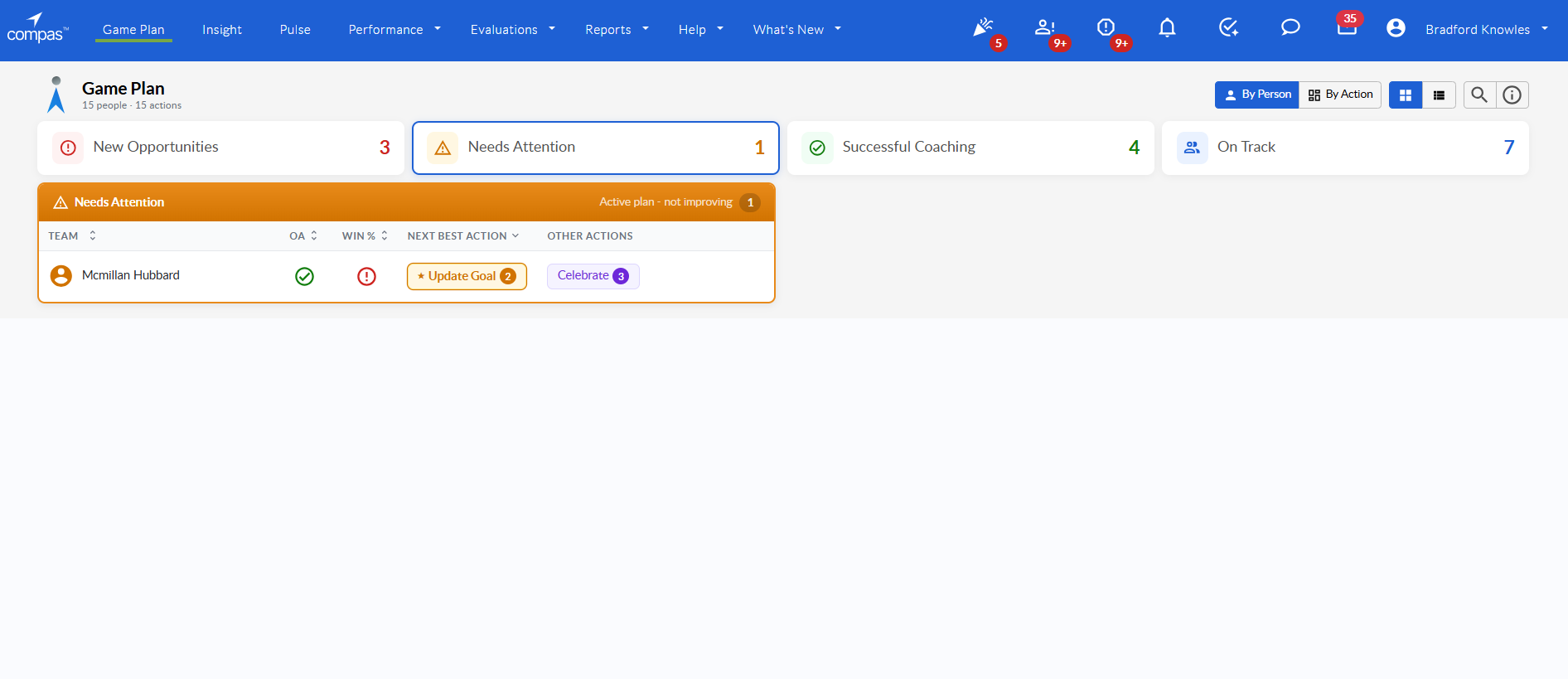
Figure 1: Summary Cards
Toolbar
The toolbar provides three controls:
-
View Switcher
- Toggle between "By Person" and "By Action" views.
- Toggle between "Tile View" and "Grid View" for the By Person page.
-
Search
Click the search icon to open a text input. Type a performer name to filter results. The live result count updates as you type. -
Legend
Click the info icon to open a legend explaining each persona and action type.

Figure 2: Toolbar
Views
By Person – Tile View
The default view. Performers are grouped into four persona tiles. Each tile shows the persona icon, label, tagline, and count of performers, plus a sortable table with the following columns:
- Team
- Performer Name
-
OA – A visual indicator if a user is meeting expectations in OA:
- Green checkmark: The performer has been coached on the expected number of opportunities.
- Yellow warning: The performer has opportunity coaching, but not on the expected number of opportunities.
- Red warning: The performer has not been coached on ANY opportunities.
- Grey dash: The performer is meeting expectations on all opportunity KPIs.
-
Win % – A visual indicator if the coaching completed for this performer is driving improvement. Tied to Winning % configuration thresholds:
- Green checkmark: Performer is meeting target on Winning %.
- Yellow warning: Performer is just below target on Winning %.
- Red warning: Performer is not close to meeting target on Winning %.
- Grey dash: No recent Winning % data for this performer.
-
Next Best Action
The action the system has determined is the most important action for the coach to take regarding the performer. Clicking the action will navigate the coach to the area designed to complete that action. -
Other Actions
List of additional actions that should be completed for the performer.
The tile collapses to an empty state ("No performers in this category") when no performers are in that group.
Click any column header to sort. Click again to reverse the direction. The default sort is Next Best Action descending (most urgent action first). Ties on any column are broken by performer name ascending.
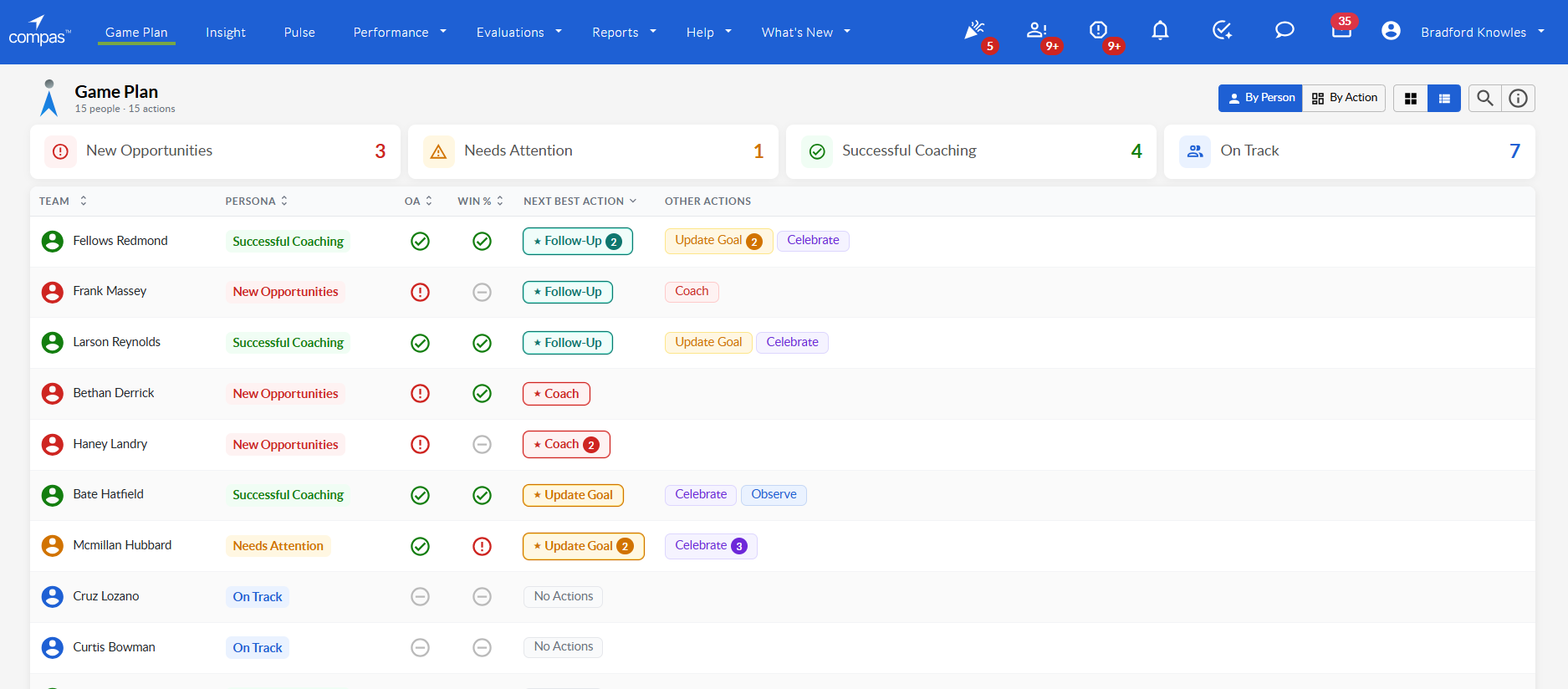
Figure 3: By Person – Tile View
By Person – Grid View
A flat, unified table showing all performers regardless of persona. Includes an additional Persona column (shown as a coloured pill with icon). Otherwise identical to the tile view in terms of columns and sort behaviour.
Use this view when you want to see all performers together and sort or compare across personas.
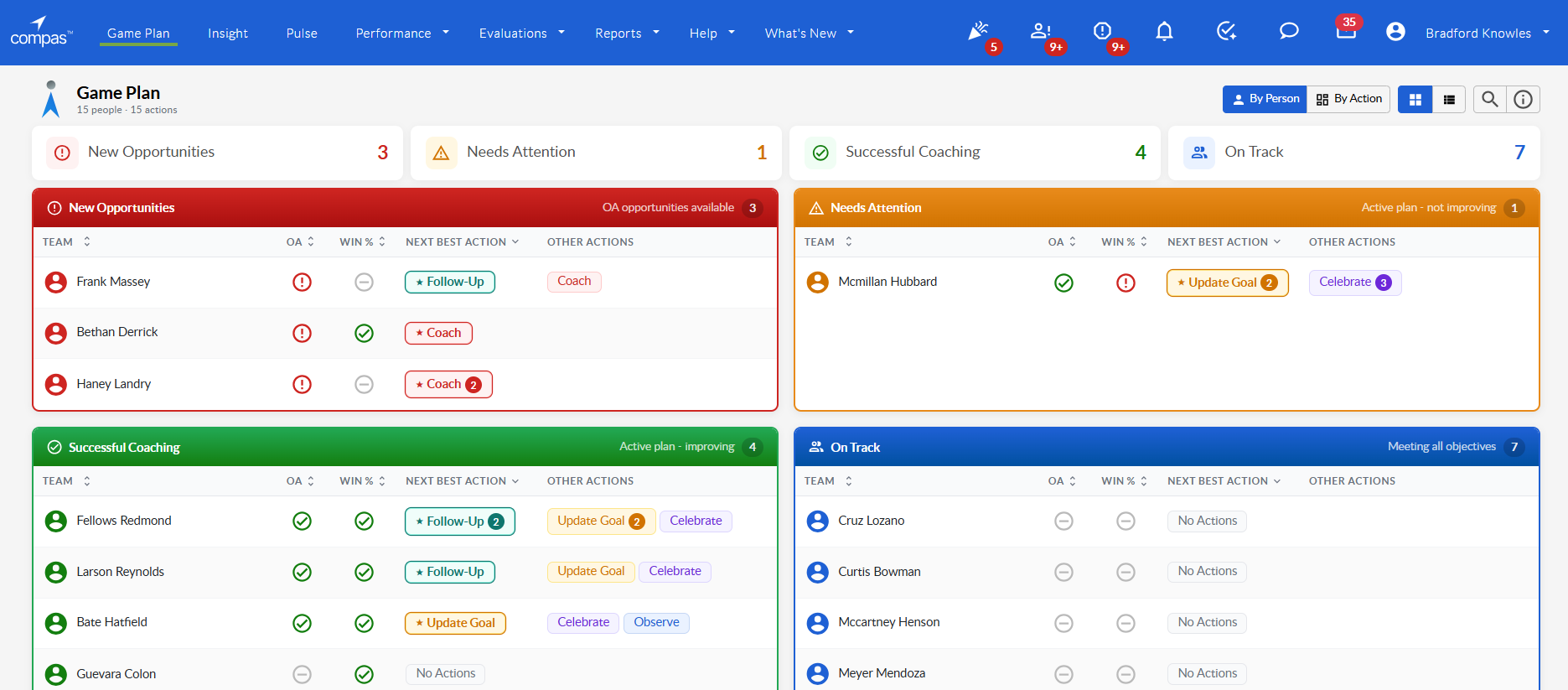
Figure 4: By Person – Grid View
By Action – Lane View
A kanban-style view with one lane per action type. Each lane displays the performers who have that action as their recommended next step. Performers exist in each lane for which they have a corresponding action.
Lanes (Left to Right):
| Action | Cause |
|---|---|
| Follow-Up | Performer has commitment(s) pending sign-off. |
| Coach | Performer has OA opportunities requiring a coaching conversation. |
| Update Goal | Performer has commitments with expired or near-expiry goals. |
| Celebrate | Performer has an achievement to recognize. |
| Observe | Performer has an active commitment with no recent observation. |
| Review | Performer has commitment(s) that require a review session. |
Each card in a lane shows the performer's avatar, name, persona pill, and an arrow indicator. Clicking the card navigates the user to complete the action.
Personas
Users are divided into four personas based on their associated OA and Winning % scores.
-
New Opportunities
Performers that have not been coached on the expected number of opportunities and have uncoached OA opportunities. This is deemed critical to address and is the priority regardless of Winning % status. -
Needs Attention
Performers whose Winning % status is not meeting target. OA for these performers is either met or N/A. These performers need attention to understand why the coaching that has been completed is not driving improvement. -
Successful Coaching
Performers who have been coached and the coaching is driving improvement. Coaching does not have to be OA-aligned to be considered for this category — any KPI coaching that is driving improvement is considered.
Note: A performer who was coached recently but enough time has not passed for the commitment to be considered for Winning % would be in this persona. -
On Track
Performers who are currently meeting expectations on all OA KPIs and are not being coached on any KPIs at all. They may be receiving non-KPI coaching, but without a goal to measure against, it isn't considered in Winning %.
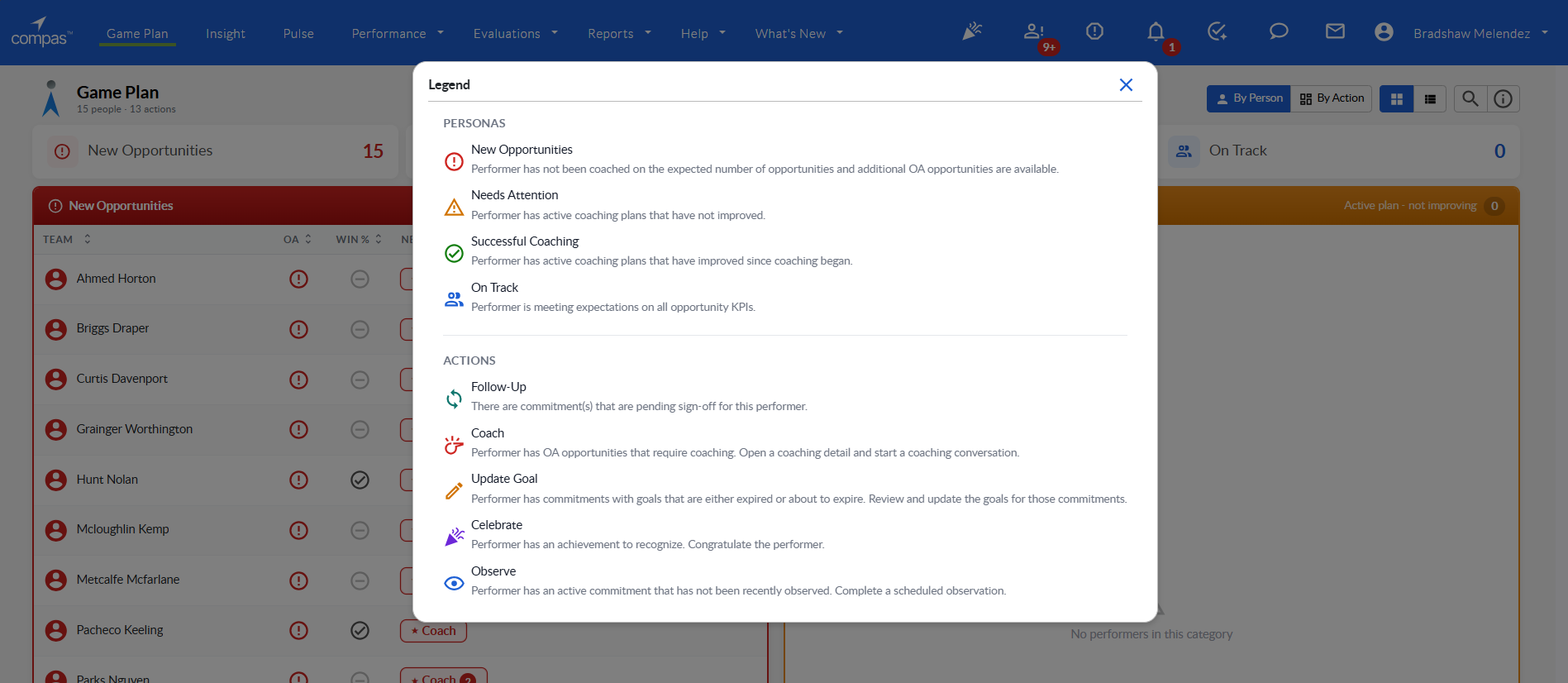
Figure 5: Persona Legend
Persona Assignment Matrix:
| Persona | OA Status | Winning % Status |
|---|---|---|
| New Opportunities | OA Score is not 100% | Any |
| Needs Attention | OA is met or OA is N/A | Winning % is below Winning % target |
| Successful Coaching | OA is met or OA is N/A | Winning % is meeting target or Winning % is N/A |
| On Track | OA is N/A | Winning % is N/A |
Actions
Each performer is assigned a Next Best Action (NBA) — the single most urgent action for that performer. They may also have additional Other Actions: items that should also be completed for each performer.
Actions are prioritised in the following order (highest to lowest):
| Action | Cause |
|---|---|
| 1. Follow-Up | Performer has commitment(s) pending sign-off. |
| 2. Coach | Performer has OA opportunities requiring a coaching conversation. |
| 3. Update Goal | Performer has commitments with expired or near-expiry goals. |
| 4. Celebrate | Performer has an achievement to recognize. |
| 5. Observe | Performer has an active commitment with no recent observation. |
| 6. Review | Performer has commitment(s) that require a review session. |
Action Behaviour:
| Action | Count | Behaviour |
|---|---|---|
| Follow-Up | 1 | Navigate to commitment requiring approval. |
| Follow-Up | Multiple | Choose commitment from list, navigate to commitment. |
| Coach | 1 | Navigate to new commitment with KPI pre-selected. |
| Coach | Multiple | Choose opportunity from list, navigate to new commitment with chosen KPI pre-selected. |
| Update Goal | 1 | Navigate to commitment requiring update. |
| Update Goal | Multiple | Choose commitment from list, navigate to commitment. |
| Celebrate | Any | Performer has an achievement to recognize. |
| Observe | 1 | Navigate to commitment requiring observation. |
| Observe | Multiple | Choose commitment from list, navigate to commitment. |
| Review | 1 | Navigate to commitment requiring review. |
| Review | Multiple | Choose commitment from list, navigate to commitment. |
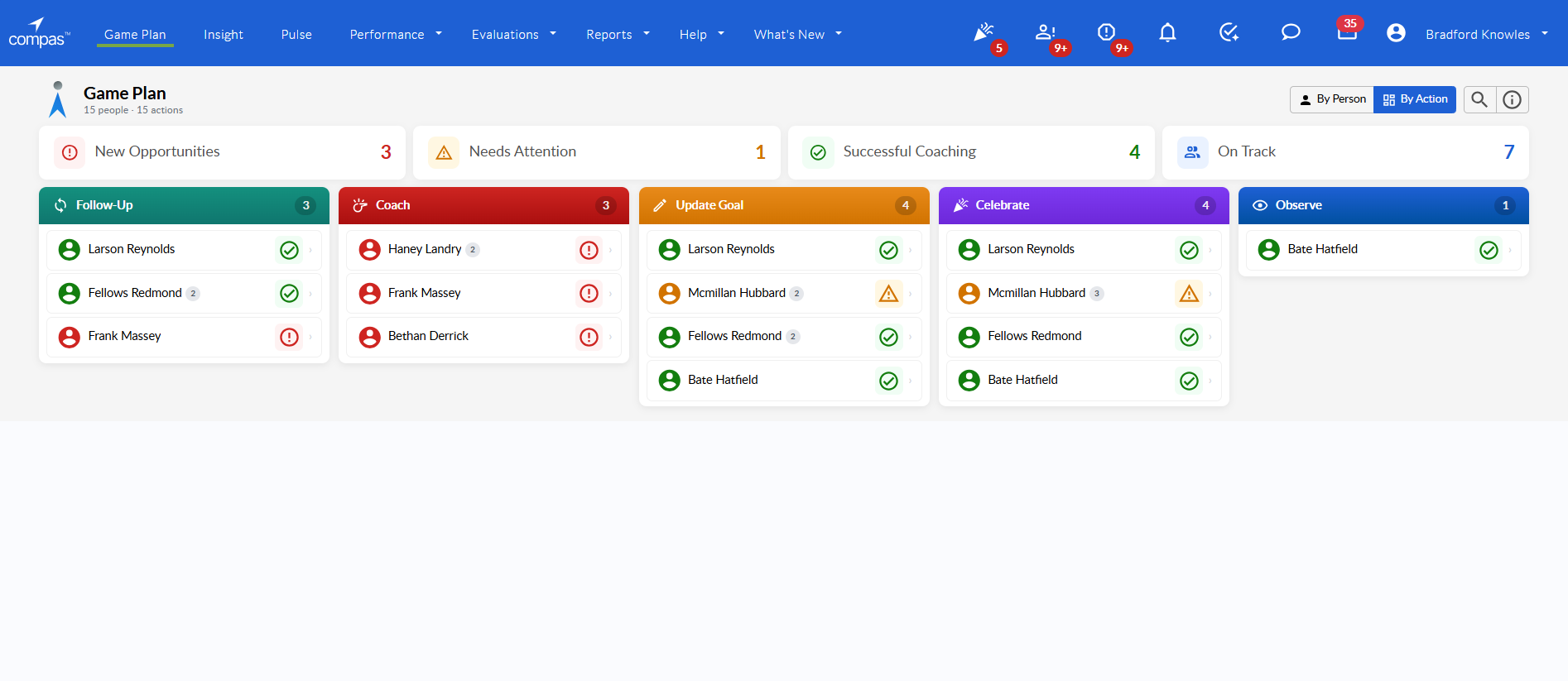
Figure 6: Action Picker
Legend
The legend (accessible via the info icon in the toolbar) provides a reference for:
- All Persona categories — their icon, label, and description.
- All Action types — their icon, label, and description.
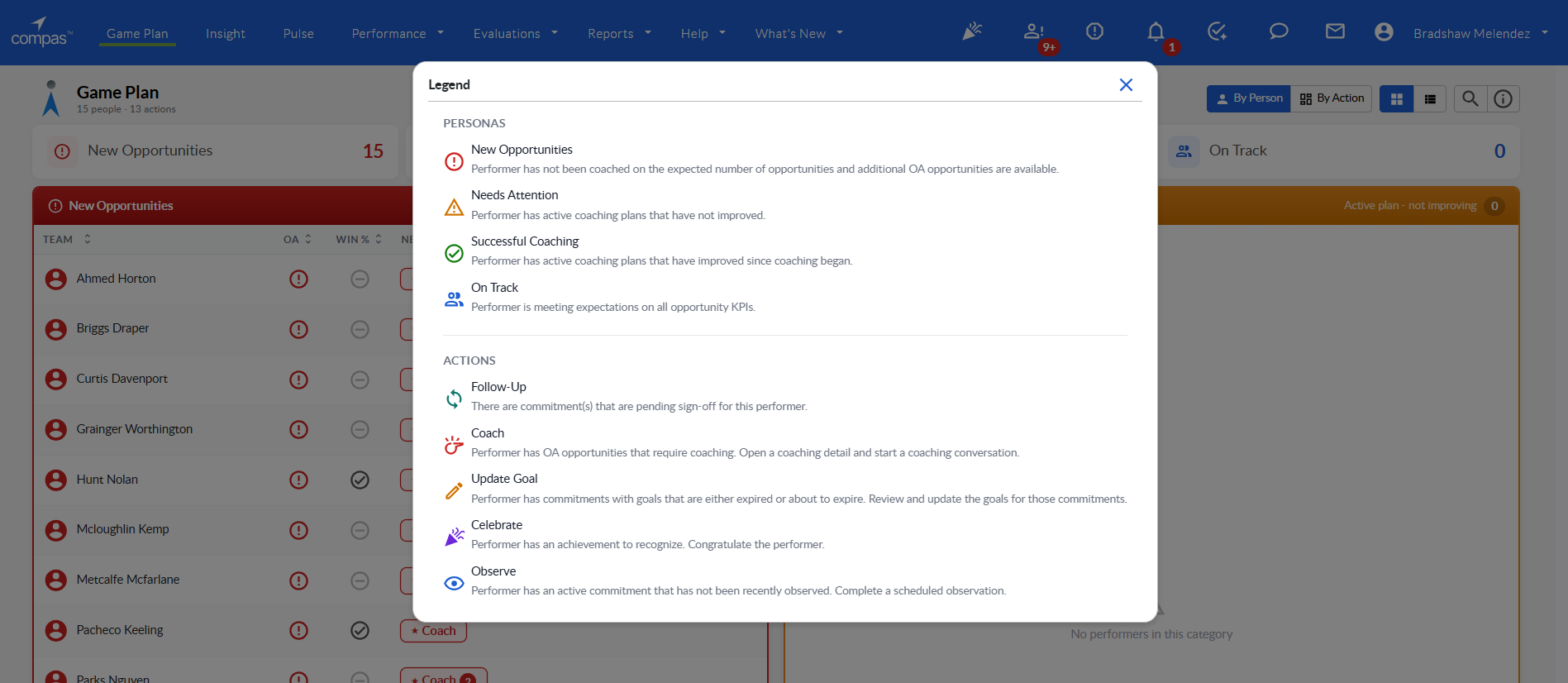
Figure 7: Legend
Filtering and Search
Search and persona filter can be used independently or together. Both apply across all views.
-
Search:
Partial, case-insensitive match on performer name. -
Persona Filter:
Click a summary card to restrict results to one persona; click again to clear. -
Combined:
When both are active, only performers matching both criteria are shown.
The result count displayed in the toolbar updates in real time to reflect the current filter. Search and filter are not reset as a user changes between views.
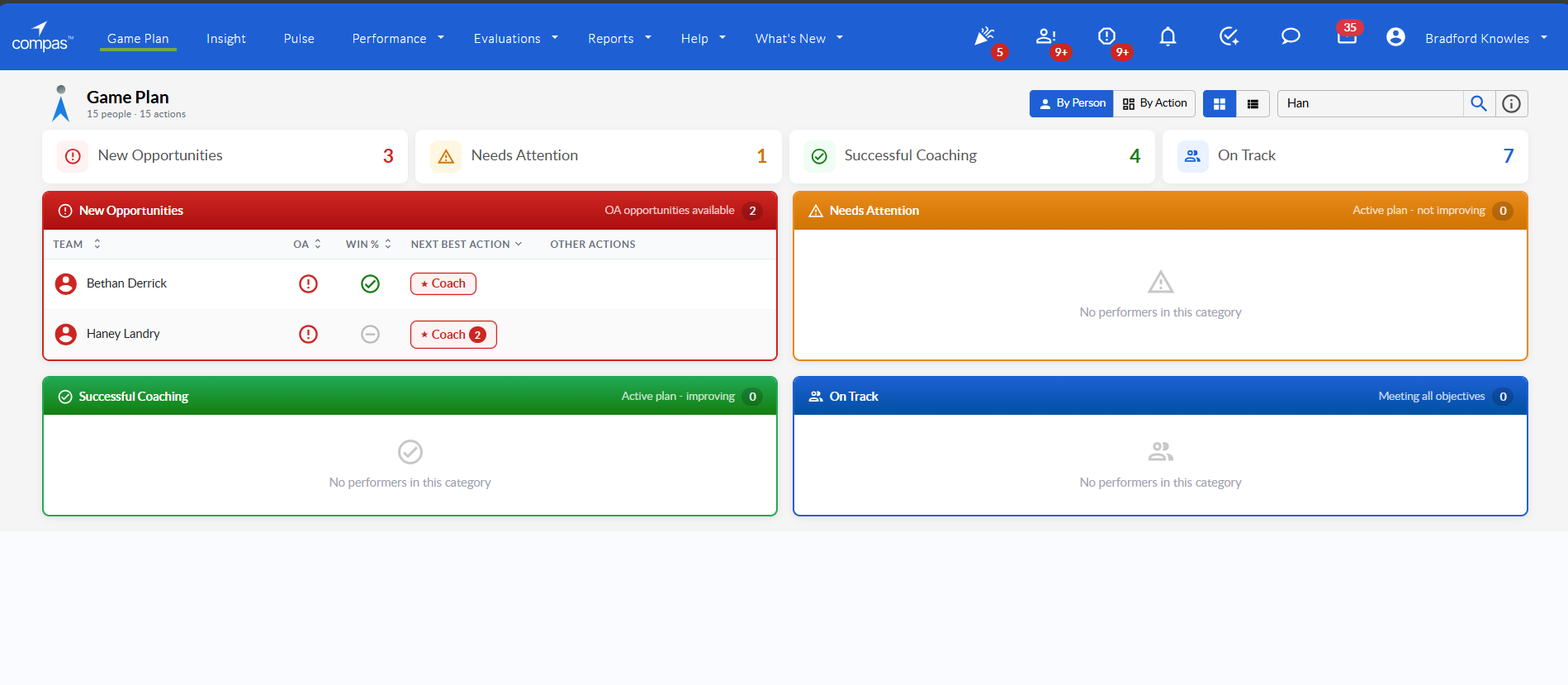
Figure 8: Filtering and Search
Configuration Options
Game Plan has no specific configurations of its own. It uses the configurations from OA and Winning % to categorize performance
Note: these options can only be updated via Change Request, not through COMPAS.
Permissions
There is only 1 permission for Game Plan:
-
Access
- Can a user access Game Plan.
- Data loaded is always for the logged-in user.
Note: these options can only be updated via Change Request, not through COMPAS.
Latest Changes
- March 2026: Compas Version 6.XXX
Initial Launch.