Winning %
Overview
It’s not enough to say that an active coach is an effective coach, the coaching needs to bring about positive traction in metric performance. Winning % is a way to measure if the coaching that is being completed in Compas is driving performance forward.
Winning % measures where performance is when coaching begins and where it currently resides. If a commitment has improved by the required amount, it is considered “winning”. A commitment is considered “improving” if progress has been made but not enough to be considered winning. A commitment is considered “declining” if performance has got worse since coaching began.
Winning % is the percent of commitment plans, active in the last 30 days, that are considered winning divided by the total number of plans.
Using the Winning % module a team leader can assess their winning percent across both the individuals they have coached as well as the metrics they have chosen to coach. This allows a team lead to assess any trends that may be resulting in positive or negative outcomes.
To reinforce the importance of Winning % it is available to be configured on a TLs scorecard for any purpose. Improving % and Declining % are also available but are best used as conditions, modifiers, or qualifiers.
Once a commitment has been created and a goal is accepted (the goal must be active for at least 7 days), COMPAS will calculate the start actual value for that metric and compare it with the current actual value to determine the percentage of improvement.
For higher the better metrics:
% of improvement = ((Current Value - Start Value)/Start Value) *100
For lower the better metrics:
% of improvement = (Start Value - Current Value)/Start Value) *100
Winning Threshold: Every metric has a Winning Threshold configured which is the % improvement that a metric actual must achieve to be considered as Winning
EXCEPTION: As soon as a KPI becomes favourable to target it will be considered winning regardless of whether or not it has met the Winning Threshold.
All eligible commitment plan will have their winning status determined by the following rules:
- Winning: % of improvement >= Winning threshold
- Improving: % of improvement >=0 AND % of improvement < Winning threshold
- Declining: % of improvement < 0

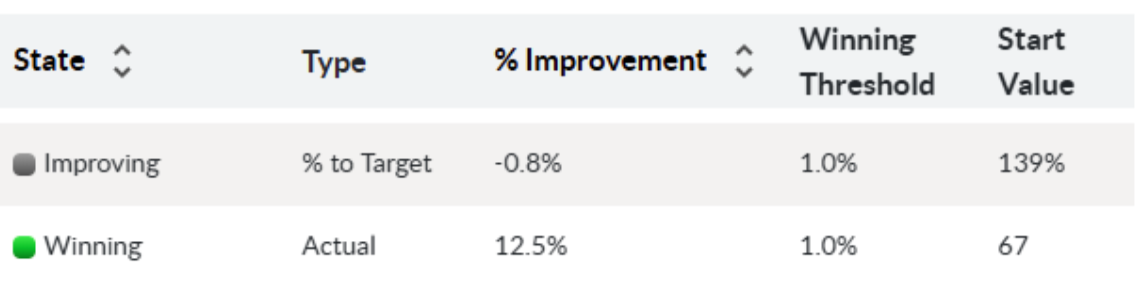
Example: Rush Hook, July 2nd, Contact Quality
Metric Overall Quality was coached and when the goal was accepted the rolling 30-day actual for that metric was 67 This will be considered the “Start Value”. Today the rolling 30-day actual is 75.375. This is considered the “Current Value”. The % of improvement will be:
((75.375 - 67)/67) *100 = 12.5 %
Since the Winning Threshold for that metric is 1.0 % the status of that coaching will be Winning.
Winning % Calculation
The second column of the Winning % module represents the Winning % score. The formula for Winning % is:
Of Commitments Deemed Winning / Total Assessed Commitments *100
where a commitment is elgible to be included in Winning %.
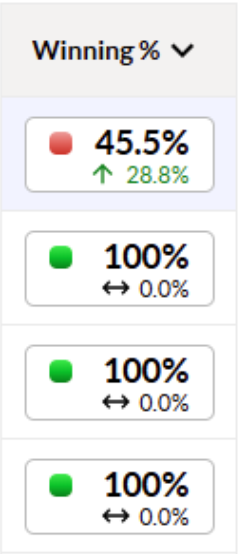
Figure 1: Example of Winning % score column
Column Elements:
- Threshold Square: A threshold square is the first element in the column. It indicates if the performance is favourable to target or not. The colour displayed in the square is based on the current actual measured against the configured target and thresholds. Potential colours are: Green – Favourable to target, Yellow – Close to target, and Red – Unfavourable to target.
- Current Actual: The Winning % achieved for the selected period and time range.
- Trend Arrow: A colourized trend arrow will indicate if the current performance has improved, declined, or stayed they when evaluated against the previous period.
- 0.0 formatting: When the score is 0 the whole rectangle will be emphasized with a red background.
Column Functionality:
- Sorting: Clicking the cell header will sort the module. By default the sorting criteria is high to low.
- Tool Tip: Hovering over the Winning % score will produce a tool tip with the following information:
- Current Winning %
- Previous Winning %
- % Change
- Recent Winning %
- Note (these are only available when viewing Full Span Winning % Results.
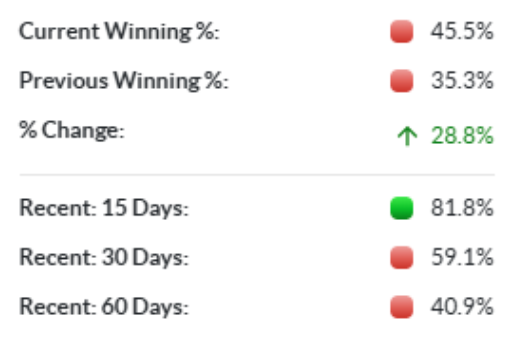
Figure 2: Full Span Winning Tool Tip
Assessed Commits
"Assessed Commits" is the third column displayed in Winning %. It represents the count of Commitments that are being included in the Winning % calculation.
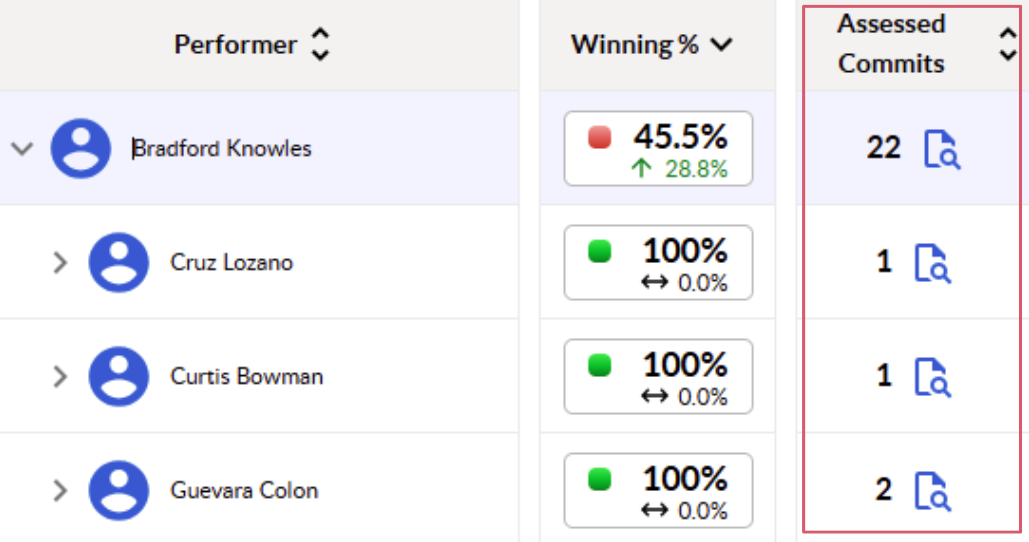
Figure 3: Assessed Commits Column
Column Elements:
- Count: The number of eligible commitments considered for the selected period and time range.
- Note: each goal within a commitment is considered its own commitment in Winning %.
- View Commitment Details Button: Button that will open a dialog box with additional information on each commitment.
Column Functionality:
- Sorting: Clicking the cell header will sort the module.
Commitment Details Pop-Up:
The commitment details pop-up includes additional details about all the commitments that are being assessed for winning percent. Clicking anywhere in the cell will launch the dialog box.

Figure 4: Commitment Details Pop-Up
The pop-up up is a grid made up of the following elements:
Direct Report
- Is a Performer who is being coached in the commitment.
Start Date
- Day is when the initial goal is accepted.
Days Active
- Number of days between initial goal start date and current date.
Metric
- Goal metric associated to the commitment assessed.
Focus
- Behaviour/ Tactic of the commitment.
State
- Current Winning State of commitment either Winning, Improving, or Declining.
Type
- Indicator of whether or not Winning % is being calculated using Actual or % to Target results.
% Improvement
- Result comparing the current value to the start value. It is the same used to determine the Winning State.
Winning Threshold
- Threshold at which the commitment is now considered Winning.
Start Value
- The initial rolling 30 day actual or % to target result.
- Result depends on selected period and time range.
Current Value
- The current or end rolling 30 day actual or % to target result.
- Result depends on selected period and time range.
Wins At
- Value at which commitment will be considered Winning.
Status
- Status of the commitment, either active or closed
View Commitment
- Link that will navigate user to commitment in Compas.
The commitment details pop-up is eligible to be sorted by clicking on any header with sort icons displayed. The default sort order is by Direct Report.
Winning % Distribution
“Winning % Distribution” is a visual representation of how many commitments are Winning, Improving, or Declining.
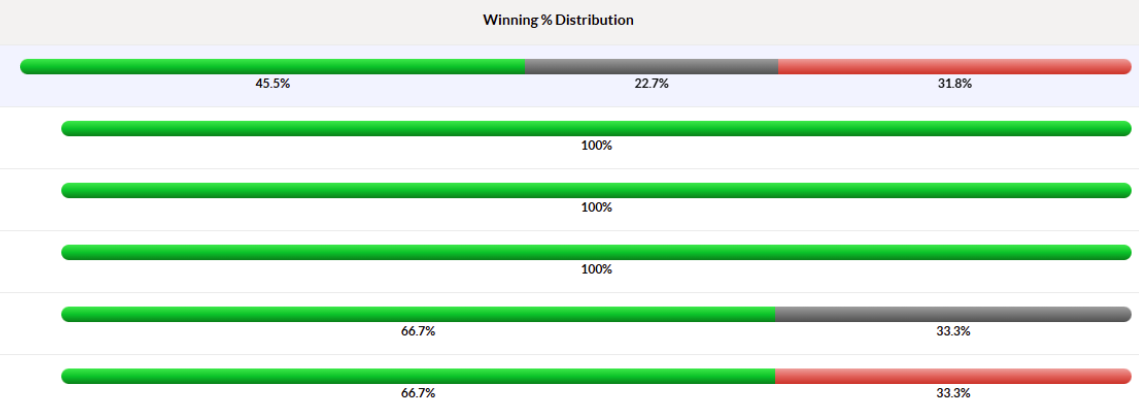
Column Elements:
- Distribution Bar: shows visually what percentage of commitments are winning (green), improving (gray), or declining (red)
Column Functionality:
- Tool Tip: Hovering over the distribution bar will produce a tool tip with the following information:
- Percentage and number of commitments in each winning state
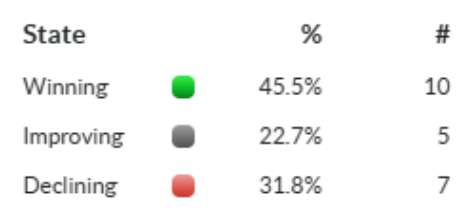
Figure 5: Distribution bar tool tip
Excluded Commits
“Excluded Commits” is the count of the Commitments that are open during the selected period and time range that are not included in the winning % calculation.
Reasons for a commitment to be excluded from the calculation include:
- Commitment being not open long enough. A commitment must be open for 7 days before it is included. Additionally, if the selected time range is recent 30 or 60 and a commitment has not been open 30 or 60 days it will not be included.
- KPI is meeting target when coaching begins. A KPI must be unfavourable to target when coaching initially begins to be included.
Column Elements:
- Count: The number of excluded or ineligible commitments considered for the selected period and time range.
- Note: each goal within a commitment is considered its own commitment in Winning %.
- View Commitment Details Button: Button that will open a dialog box with additional information on each commitment.
Column Functionality:
- Sorting: Clicking the cell header will sort the module.
Commitment Details Pop-Up:
The commitment details pop-up includes additional details about all the commitments that are being assessed for winning percent. Clicking anywhere in the cell will launch the dialog box.

Figure 6: Commitment Details Pop-Up (Excluded Commits)
The pop-up up is a grid made up of the following elements:
- Direct Report
Is a Performer who is being coached in the commitment. -
Start Date
Day is when the initial goal is accepted. -
Days Active
Number of days between initial goal start date and current date. -
Metric
Goal metric associated to the commitment assessed. -
Focus
Behaviour/ Tactic of the commitment. -
Disposition
Reason goal/Commitment is excluded -
Status
Status of the commitment, either active or closed -
View Commitment
Link that will navigate user to commitment in Compas.
The commitment details pop-up is eligible to be sorted by clicking on any header with sort icons displayed. The default sort order is by Direct Report.
Team & Drill Path
The first column in the grid is the “Performer” column. This provides a hierarchical view of the organization structure, starting with a designated manager and listing their direct reports beneath. Each row represents an individual within that reporting line.
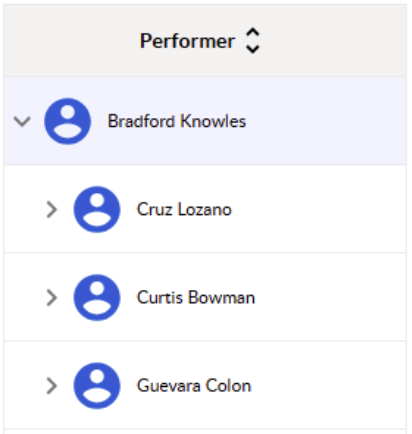
Figure 7: Performer Column
Note: Users highlighted in light gray, no longer report to the listed manager. However, coaching activity will still impact the coach’s score until the Commitment is closed and falls outside of the selected period.
Each row is expandable and will provide a subset of data dependent on the selected drill path.
The available drill paths are:
- By Direct Report:
- Direct Report Metric Commitment
- This drill path starts at the performer level, then breaks down the coaching by metric, and finally provides a full list of commitments for each performer
- Note: if a user is above a team manager in the hierarchy the drill path is direct report recursive until they reach the frontline rep
- By Metric:
- Metric Direct Report Commitment
- This drill path starts at the metric level, then breaks down the coaching by performer, and finally provides a full list of commitments for each metric
- Note: if a user is above a team manager in the hierarchy the drill path is direct report recursive until they reach the frontline rep
Drill path is controlled by a drop-down list in the header of the module.
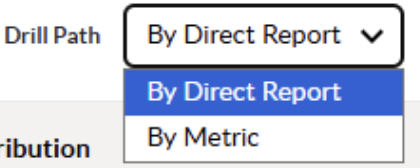
Figure 8: Drill Path Drop Down
Assessment Period and Time Range
The contents displayed in the module are controlled by two selection options:
- Assessment Period
- Winning % Time Range
The Assessment Period controls the subset of commitments to be included, and the Winning % Time Range determines what the start and end values used in the Winning % calculations are.
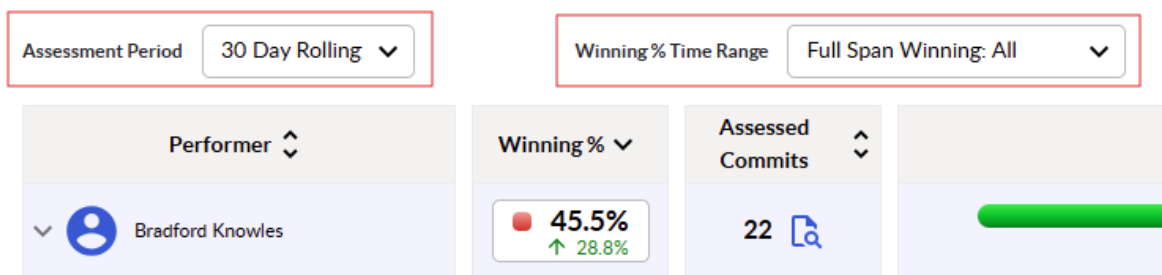
Figure 9: Period and Time Range Selection Controls
There are two types of assessment periods:
- 30 Day Rolling
This will include any commitment that has been open at least 1 day in the last 30 days - Monthly
This will include any commitment that has been open at least 1 day in the selected month.
The Winning % Time Range contents are dependent on what has been selected in Assessment Period.
If 30 Day Rolling has been selected the time range options are:
- Full Span Winning: All
- This is meant to measure improvement over the life of the entire commitment
- Measures winning using
- Start Value: initial rolling 30-day result when goal is accepted
- End Value: current rolling 30-day result
If commitment is closed, end date is day commitment is closed
- Full Span Winning: OA
This is a subset of Full Span Winning: All, but only includes commitments where the KPI was an OA opportunity when coaching began - Full Span Winning: Non-OA
This is a subset of Full Span Winning: All, but only includes commitments where the KPI was NOT an OA opportunity when coaching began - Recent 15 Days
- This is meant to measure recent improvement of the commitment
- Measures winning using:
- Start Value: initial rolling 30 day result 15 days ago
If commitment has been opened in the last 15 days, rolling 30 days result the day the goal is accepted - End Value: current rolling 30-day result
If commitment is closed, end date is day commitment is closed
- Start Value: initial rolling 30 day result 15 days ago
- Recent 30 Days
- This is meant to measure medium term improvement of the commitment
- Measures winning using:
- Start Value: initial rolling 30 day result 30 days ago
If commitment has been opened in the last 30 days, rolling 30 days result the day the goal is accepted - End Value: current rolling 30-day result
If commitment is closed, end date is day commitment is closed
- Start Value: initial rolling 30 day result 30 days ago
- Recent 60 Days
- This is meant to measure longer term improvement of the commitment
- Measures winning using:
- Start Value: initial rolling 30 day result 60 days ago
If commitment has been opened in the last 60 days, rolling 30 days result the day the goal is accepted - End Value: current rolling 30-day result
If commitment is closed, end date is day commitment is closed
- Start Value: initial rolling 30 day result 60 days ago
If monthly has been selected the time range options are the last 13 months. Monthly measures if improvement has occurred over the course of the selected month.
- Start Value: Rolling 30 day on the first day of the month
If commitment was opened within the month, the rolling 30 day result the day the goal is accepted - End Value: Rolling 30-day result on the last day of the month
If commitment was closed during the month, the rolling 30 day result the day the commitment was closed - If you are selecting the current month, the end value is the current rolling 30-day result
Information
On the right most edge of the module header there is an information button. Clicking on this button will launch a dialog box that contains a quick overview of Winning %.

Configuration Options
Winning % contains the following configuration options:
- Winning % Target: The expectation each team manager is meant to be achieving
- Performance Thresholds: This will determine the colourization of performance based on Winning % - % to Target
Example:- Green: 90 % to Target+
- Yellow: 80 to 90% to target
- Red: Less than 80% to target
- Winning Threshold: This is the % of improvement that each metric should meet to be considered “Winning”
- Winning Type: This determines, for each metric, what results will be used to determine if a commitment is winning
- Actual
All calculations will use metric actual results - % to Target
All calculations will use metric % to target results
- Actual
- Population Groups: The groups of users who are enabled for Winning %
Note: these options can only be updated via Change Request, not through COMPAS.
Permissions
There are two elements of permissions for Winning %
- Enable
- Is Winning % enabled for a specific user
- This can be done through populations groups
- Access
- Can I access the Winning % of a specific user
- This is derived from the overall permissions for the Coaching Insight Module
If a user has access to view a specific user and that user has Winning % enabled, they will be able to access their Winning %
Note: these options can only be updated via Change Request, not through COMPAS.
Latest Changes
- August 2025: Compas Version 6.4
Complete Redesign. Changes to how Winning % is calculated and viewed in the application.